
In Innoplus, décor tiles can be used to create patterns, be placed individually or to finish a border design with matching corners. You can either use predefined décor tiles, add them from the manufacturer catalogue or redefine other tiles into décor tiles.
Predefined décor tiles
Predefined décor tiles can be found in Neutral tiles > Tiles for floor frieze.
Décor tiles from a Manufacturer catalogue
Click Tiles on the menu bar:
- Click on Supplier catalogues.
- On the Catalogues assistant tab, which is at the right-hand side of your screen, double-click on a Manufacturer catalogue.
- In the Type drop-down box, choose Decor.
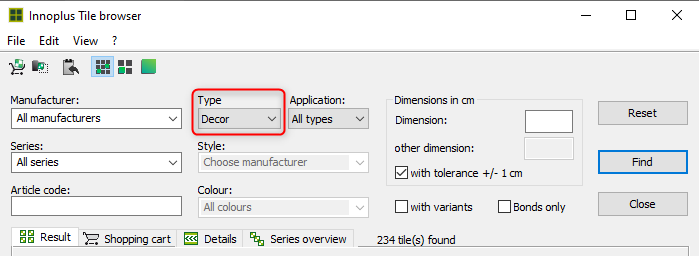
Note: You can switch between manufacturer catalogues in the Manufacturer drop-down box. Not all manufacturers have decor tiles in their catalogues. - On the Result tab you can now browse the filtered results.
Note: you can drag and drop one tile at a time onto your Clipboard, onto an open file card, into a plan or.... - Highlight the tile you want with a left-click, then right-click and choose Selection into shopping basket.
Note: You can select multiple tiles at the same time by holding Ctrl and left-clicking on the tiles. - On the Shopping cart tab, right-click and select Shopping basket as card.
- In the window Define the target, choose either Add to Clipboard, Add to active file card or Use a new file card.
- Click Import.
Redefining tiles as décor tiles
- Drag and drop the tile into the Clipboard.
- Right-click on the text underneath the tile and select Properties.
- Under Tile type select Decor.
- Click OK.
For information on how to use décor tiles, see How to use décor tiles.
Note: If you are unsure if a tile is a décor tile, drag and drop it to Clipboard, right-click the text underneath the tile and select Properties. Under Tile type you can see the defined type.
Related articles
Tile types and how to change them