Snap points are used with a variety of tools in Innoplus, from moving items to defining measures and tile areas. The snapping point toolbar icons only appear when you are using certain functions, for example Create tile area.
There are a lot of snapping points available to the Innoplus user (see article How to use the snap point tool) but the most commonly used ones and how to use them can be seen below:
|
Snap Point |
Name |
How to use |
|
|
Free |
This tool will not snap to any corner or edge, best used for moving decorative objects or comments. To move an item, click anywhere on the item and that object is now attached to the mouse, left click again to confirm movement position.
|
|
|
Corner Point |
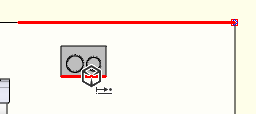
The corner point will snap to corners of rooms and objects. The snapping point will show as a red square.
|
|
|
Reference Point |
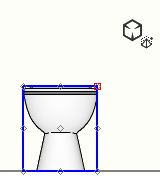
Hover over an item to show a solid blue outline. Left click to confirm the object. This tool locks the object so that the mouse can easily highlight all corners, mid points of lines and the centre of an object or face. Ideal for selecting corners of small or curved objects. |
|
|
Line Centre |
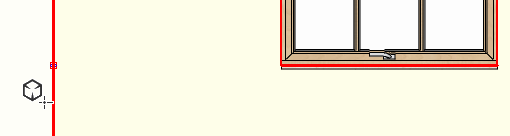
Hovering over a line or edge, this snap point will create a point in the centre of the edge. This will work horizontally and vertically. |
|
|
Distance on a line |
When using this snap point, first select a line or the edge of an object. A dialogue box will open asking for the distance from the starting point. As a number is typed in the box, the snap point can be seen moving to show the projected end point. Press OK to confirm.
|
|
|
Distance in line direction |
In order to define the direction of the line, hover the mouse over an edge of the desired angle. A red line will show from the snap point mirroring this edge, left click to confirm and a dialogue box will ask for the distance. Press OK to confirm. |
|
|
Circle Centre |
Hover over a circular shape to be able to place a snap point in the centre of the circular face. |
|
|
Vertically onto a line |
Creates a snap point vertically or horizontally directly from the origin over any highlighted edge. |