
In this article you will learn how to unpublish a plan, archive a plan, import a plan into Innoplus, how to access messages on a plan and general plan information, see all plan attachments (including the Customer details), share the plan with another person and see notes made about the plan, deactivate and upload viewpoints.
To access Compusoft Showcase 360 platform from Innoplus, click on the Manage icon:
This will take you to the Showcase 360 homepage.
Note: Find the description of the main menu icons on the homepage in Showcase Main Menu.
Click on MANAGE PLANS in the Compusoft Showcase 360 homepage. You will find all your plans uploaded to Showcase 360.
Double click on a plan and the page below appears:
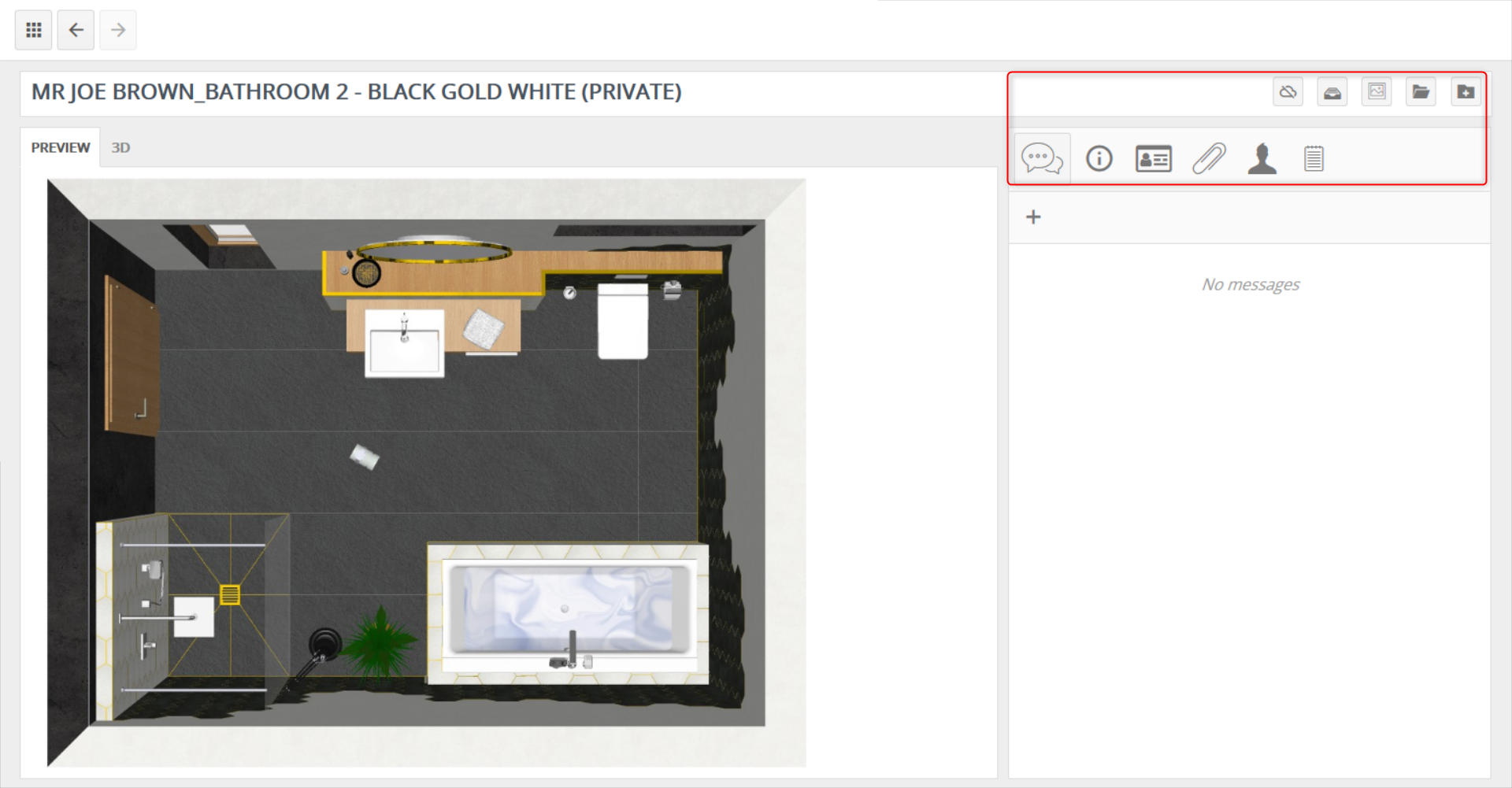
Manage plans icons:
Unpublish:Removes the Showcase 360 plan. The plan (with attachments, Notes, etc.) and the discussion thread will disappear from your Showcase 360. If you created this customer in Showcase 360 (and not in Innoplus), they will also disappear from your contact list. The customer to whom you shared this plan will no longer be able to access it. |
|
Archive plan:Just like in Innoplus, you can archive your plans. |
|
Open panorama:Opens the panorama in Innoplus. |
|
Open to edit:Opens the plan in Innoplus. |
|
Import into a new project:The plan is saved on your computer and will be imported into a new Innoplus project. |
|
Plans messages:Note: This icon is only available for Private plans not Public plans Shows messages sent between you and the customer. You have two ways to write a message:
|
|
Plan info:Shows the attributes of the plan (e.g. colour, size, etc.). These attributes can be edited. You can use them to search and filter more easily in your Showcase 360 space. |
|
Attachments of the plan:All attachments (rendered images, PDF files) that you have uploaded and sent to your customers will appear in this list. During the period that you have defined, you have the option to add, delete or disable documents. You can also define any attached picture as Preview of the plan. The Preview image will be used when the plan is displayed in the Web viewer. In the Plan view, a new tab is added when a preview is selected. |
|
Sharing the Plan:Note: This icon is only available for Private plans not Public plans. Shows the contacts to whom the plan was shared. Click on the + sign if you want to share the same plan with other people. |
|
Notes of the Plan:You can add notes or attachments to this plan, the information will be displayed in this list. Note: Notes that you add to a plan are not visible to customers. They are only for internal use. |
By clicking on the tab, you will see these three icons:
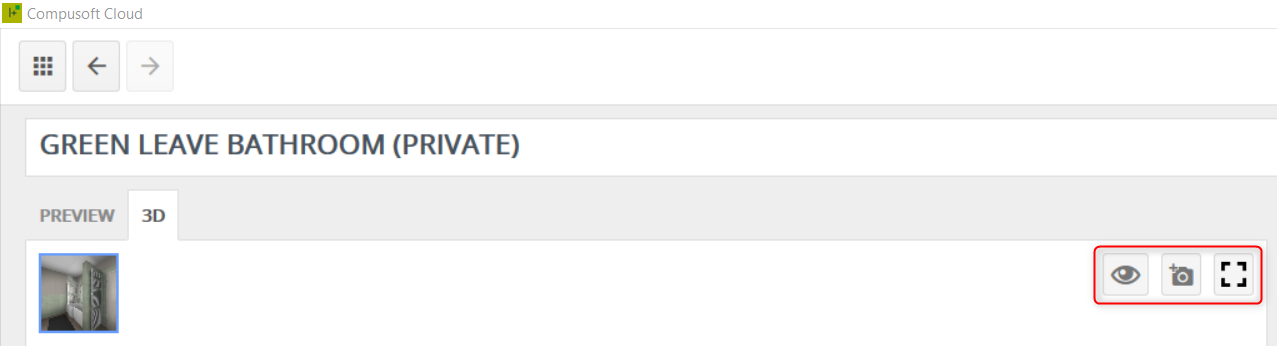
At this level, if there are several panoramas shared with the plan, you can deactivate them, add new ones or display the current in full screen.
Deactivate viewpoint:Allows you to disable this viewpoint in the customer's view of the Showcase. |
|
Upload viewpoint:Allows you to load an image file directly from your PC to Showcase 360. |
|
Show screen:Allows you to view your viewpoint in full screen. |
Next Step: Interaction between Innoplus and the Showcase Platform