
Open the Showcase platform by clicking on the Manage icon on the Project tab.
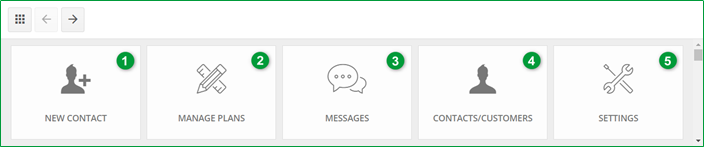
The following menu appears:
| 1 |
NEW CONTACT: You can enter the email address, the surname and first name for a new contact. This new contact will appear in the contacts/customers list of your Showcase 360 space. See also How can I delete a customer that I created inside Showcase? |
| 2 |
MANAGE PLANS: This icon allows you to view all the plans that you have uploaded on your Showcase 360 space. See also Manage plans. |
| 3 |
MESSAGES: This icon allows you to access all discussions between the shop and your potential and current customers. It is therefore very easy to keep track of your records of communication and switch between different conversations. For more information on messages see Interaction between Innoplus and the Showcase Platform. |
| 4 |
CONTACTS/CUSTOMERS: You can view the different contacts/customers appearing in your Showcase 360 space. |
| 5 |
SETTINGS: The settings of your Showcase 360 space can be managed from this icon such as company settings, advertisements and users. |
Note: Adding a contact via the Showcase 360 space will not automatically add the contact in Innoplus.
Next Step: Preparing presentations to be uploaded to Showcase