
- Open the Showcase platform by clicking on the Manage icon on the Project tab.
- On the homepage, click on SETTINGS.
- Click on COMPANY SETTINGS. The window below appears:
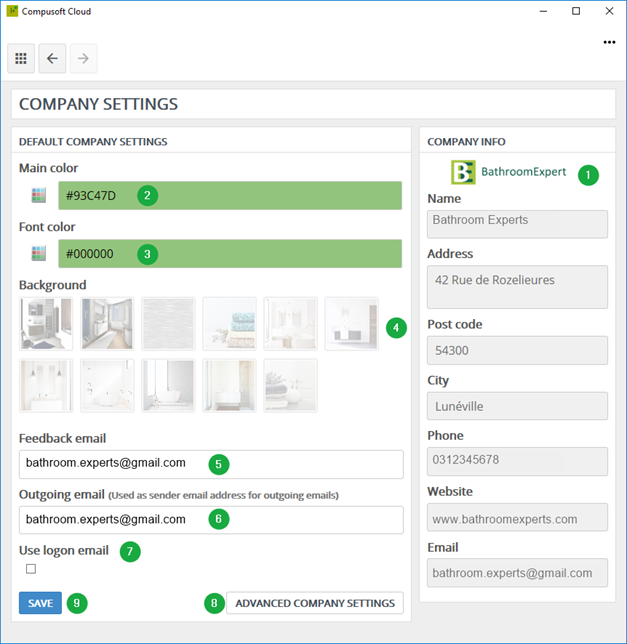
1 The company settings you entered in Innoplus (including the logo) are automatically filled in.
2 Select the main colour by clicking on the colour palette. You can also enter the HEXA code of the colour of your choice.
3 Select the font colour. You can also enter the HEXA code of the colour of your choice.
4 Select the background image.
5 Enter the incoming email address in this field. This will become the address used to receive the emails sent by your customers.
6 This email address will appear as sender’s email address at your customer’s location. See also How can I change the standard "no reply" email to my own email address?
7 Tick the box so that the outgoing email address is the same as the one linked to your Showcase account.
8 Settings managed by your IT support.
9 Click on SAVE to confirm.
Note: The main colour, the font and the background image which you choose are the ones that will be displayed in your customer’s Showcase interface: Showcase 360 Communication Platform.
Note: This icon at the top left takes you back to the Showcase homepage:
Next Step: Manage Users