In Innoplus, by default automatic backups are created after every 5 changes in the open plan. Users can adjust these settings in System settings.
In the Assistant box, located on the right side of the screen, select the Settings tab and click the System settings icon:

In the System settings window, select the Security tab:
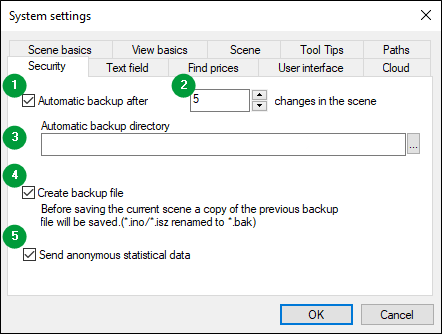 |
- Tick the Automatic backup after box to toggle the creation of automatic backups.
- Type in the filed or use the arrows to set the number of changes in the scene before an autosave is made.
- The Automatic backup directory shows the file path for the backups. To alter this, click the icon:

- Tick the Create backup file box to toggle the creation of backup files.
Note: For more information, see How to load the .bak file of a plan.
- Tick the Send anonymous statistical data box to toggle the sending of anonymous data back to the developers.
|
Related articles
How to load the .bak file of a plan
